A yogi guide to the Momoyoga app
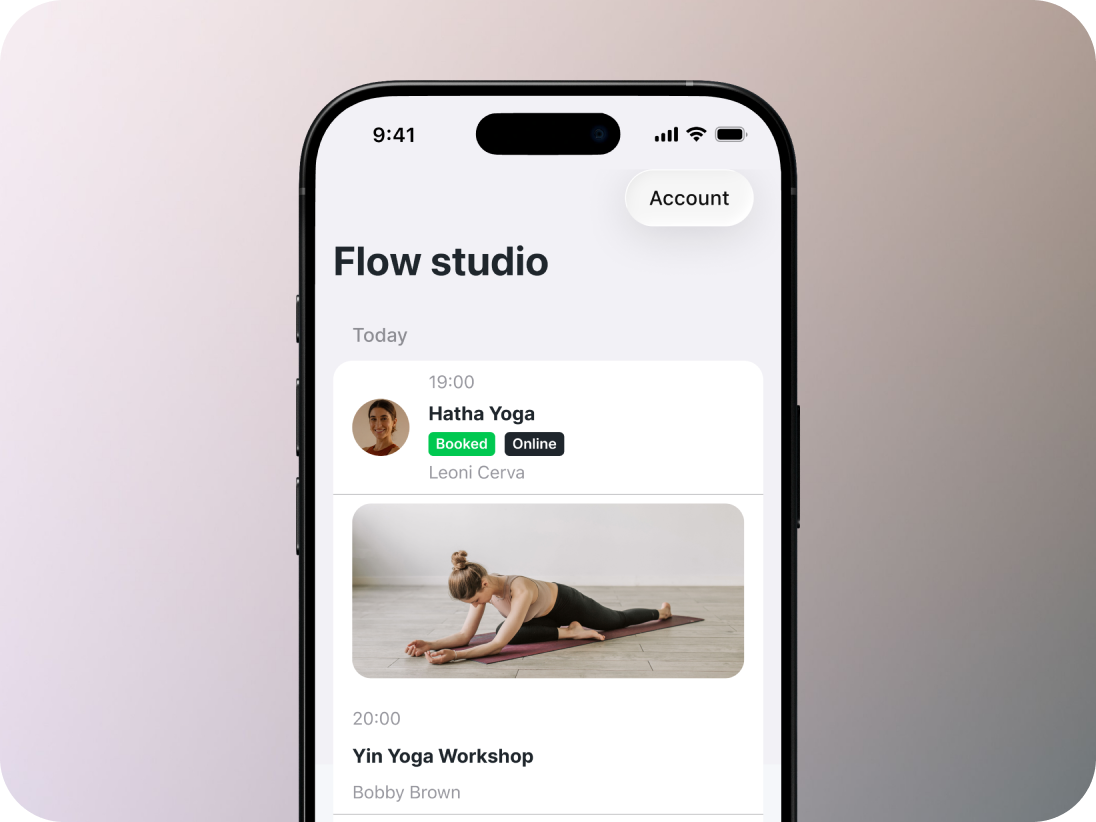
Hello dear Yogi and welcome to this guide to the Momoyoga app!
The Momoyoga app lets you manage your upcoming yoga classes wherever you are. You can browse your studio's schedule, book new classes, purchase memberships or class passes, and manage your bookings directly from your phone.
This guide will walk you through everything you need to get started and help you make the most of its features.
In this article
- Downloading the Momoyoga app
- Logging in to your account
- Browsing your studio's schedule
- Booking a class
- Booking a class series
- Bringing a guest
- Purchasing a new pricing option
- Viewing your memberships and class passes
- Using Dark Mode
- Adjusting your font size
- Need help?
Downloading the Momoyoga app
You can download the Momoyoga app on both iPhone and Android devices.
For iPhone (iOS)
The Momoyoga app is available for iPhone, iPad, and iPod Touch devices running iOS 8.0 or later (all devices except iPhone 4 and older).
- Download the Momoyoga app from the App Store
- Tap Get
- Once the app has finished downloading, tap the Momoyoga icon to open it
For Android
The Momoyoga app is available for Android devices running Android 4.4 or later.
- Download the Momoyoga app from the Google Play Store
- Tap Install
- Once the app has finished downloading, tap the Momoyoga icon to open it
Logging in to your account
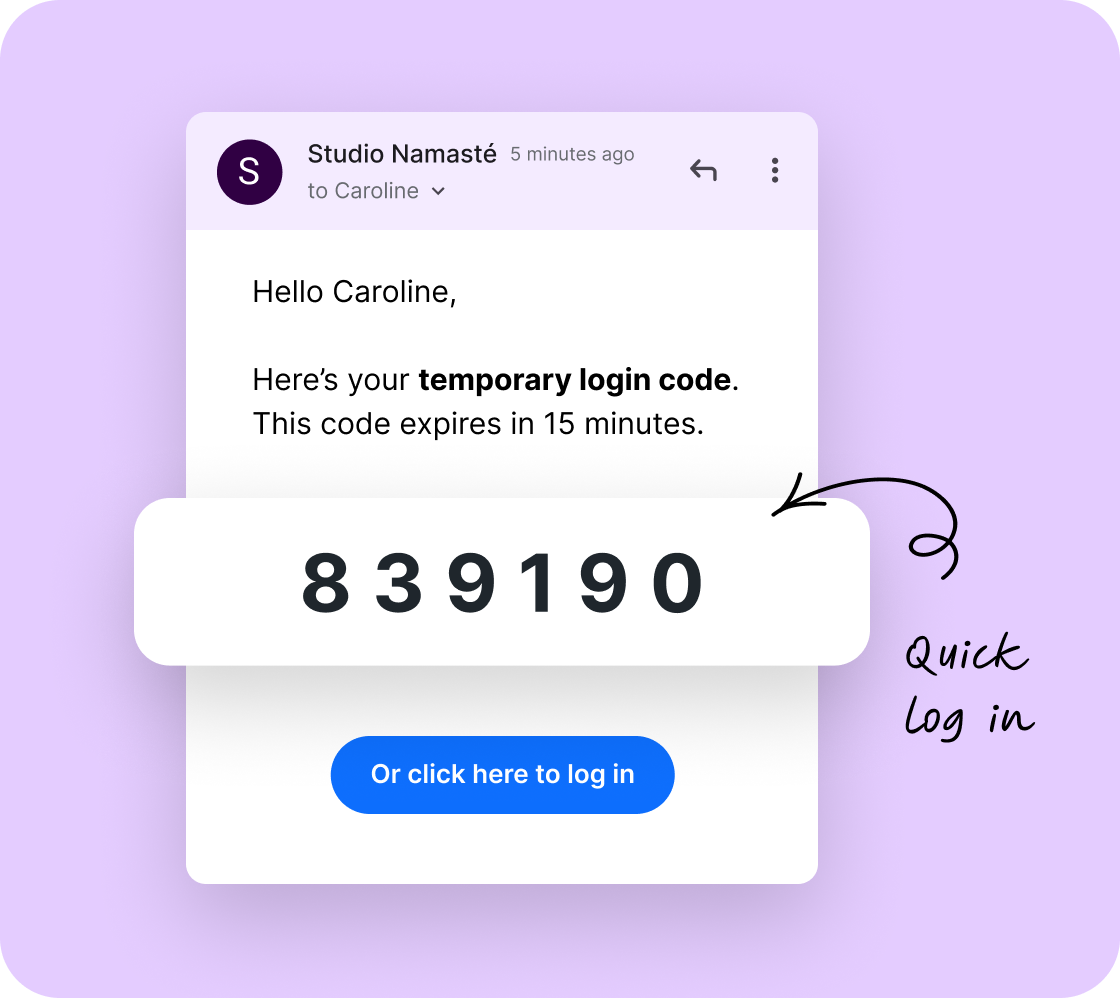
Before you can use the Momoyoga app, you'll need to create a Momoyoga yogi account with your studio. If you haven't created an account yet, you can follow the steps in our Yogi guide.
To log in to the app:
- Enter the email address associated with your Momoyoga account
- Tap Continue
- If your account is recognised and you have created a password, you'll be asked to enter it. If you haven't created a password yet, you can log in using a one-time login code
- Simply choose your preferred option, and we'll send it to the email address associated with your account. Once you've received the email, follow the instructions to log in to the app.
Browsing your studio's schedule
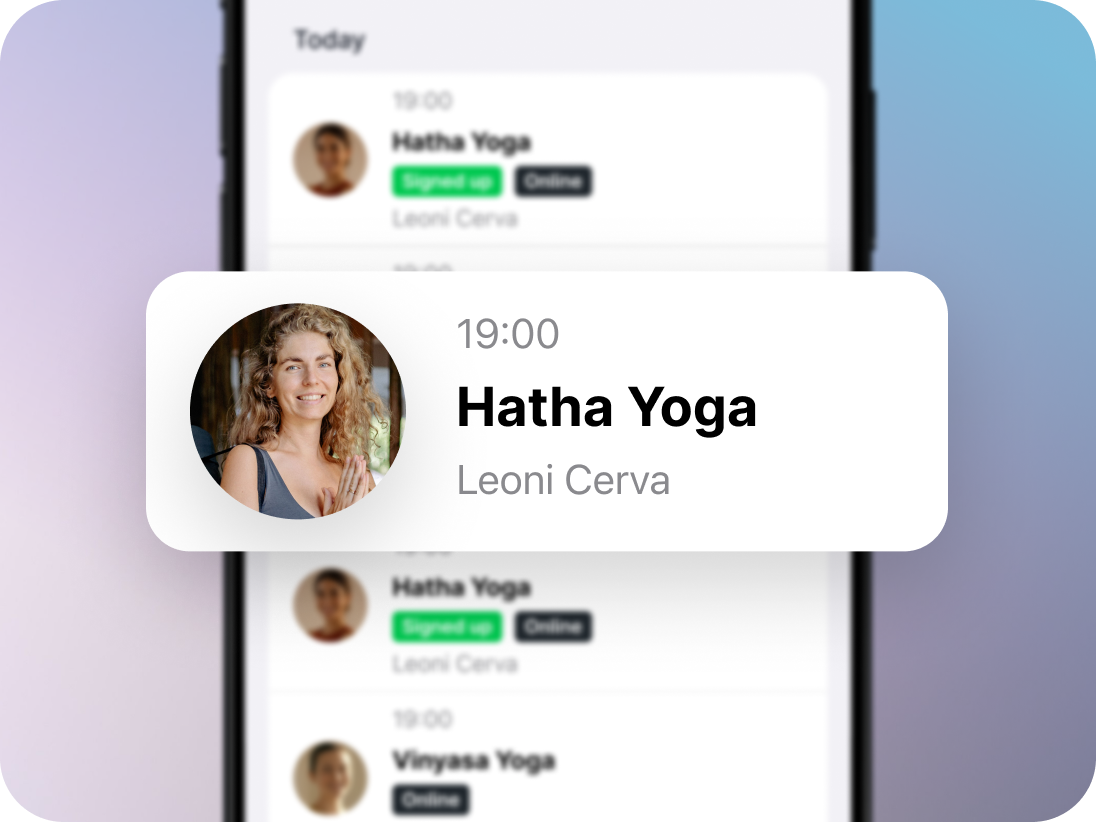
Once you've logged in, you'll be taken to your studio's schedule.
Here, you can:
- Browse upcoming classes offered by your studio per date
- View class images to get an idea of whether it’s a good fit for you
- See your teachers’ profile pictures
- See how many spaces are available or if there’s a waitlist
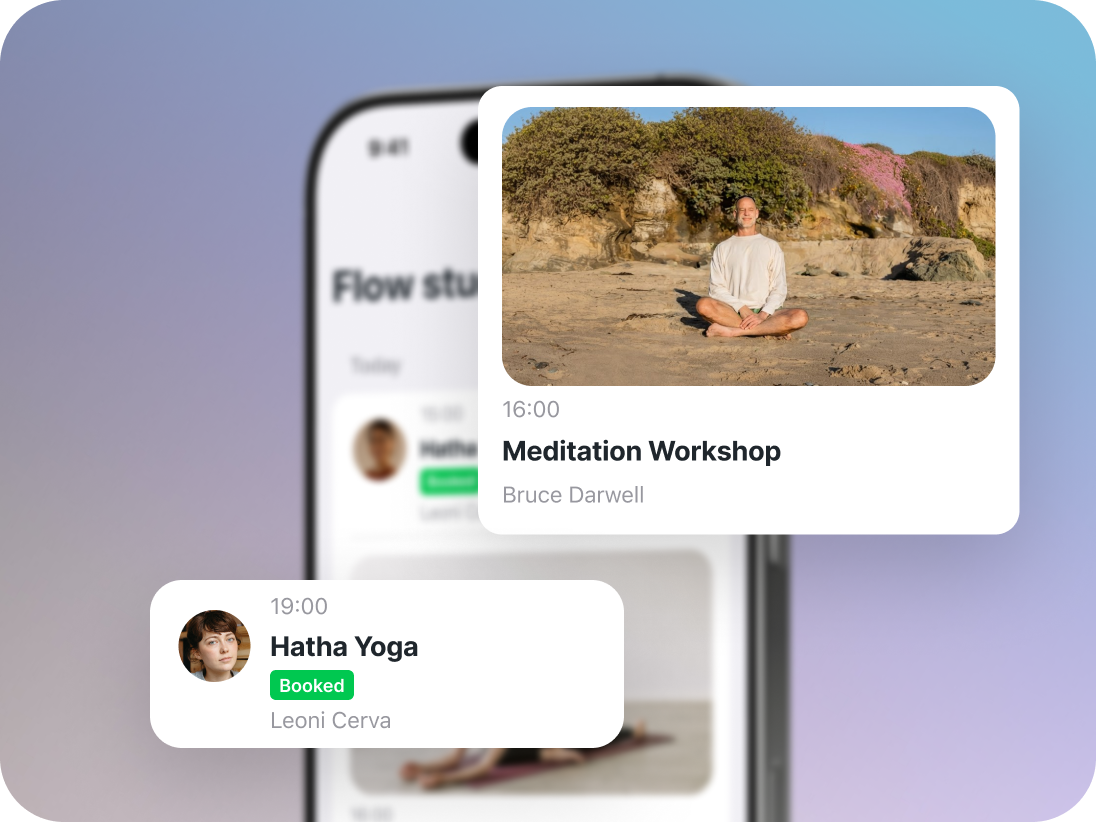
- Discover upcoming events, such as workshops or ceremonies, if these are on offer within your studio
Here, simply tap on any class that sparks your interest to view more information.
Booking a class
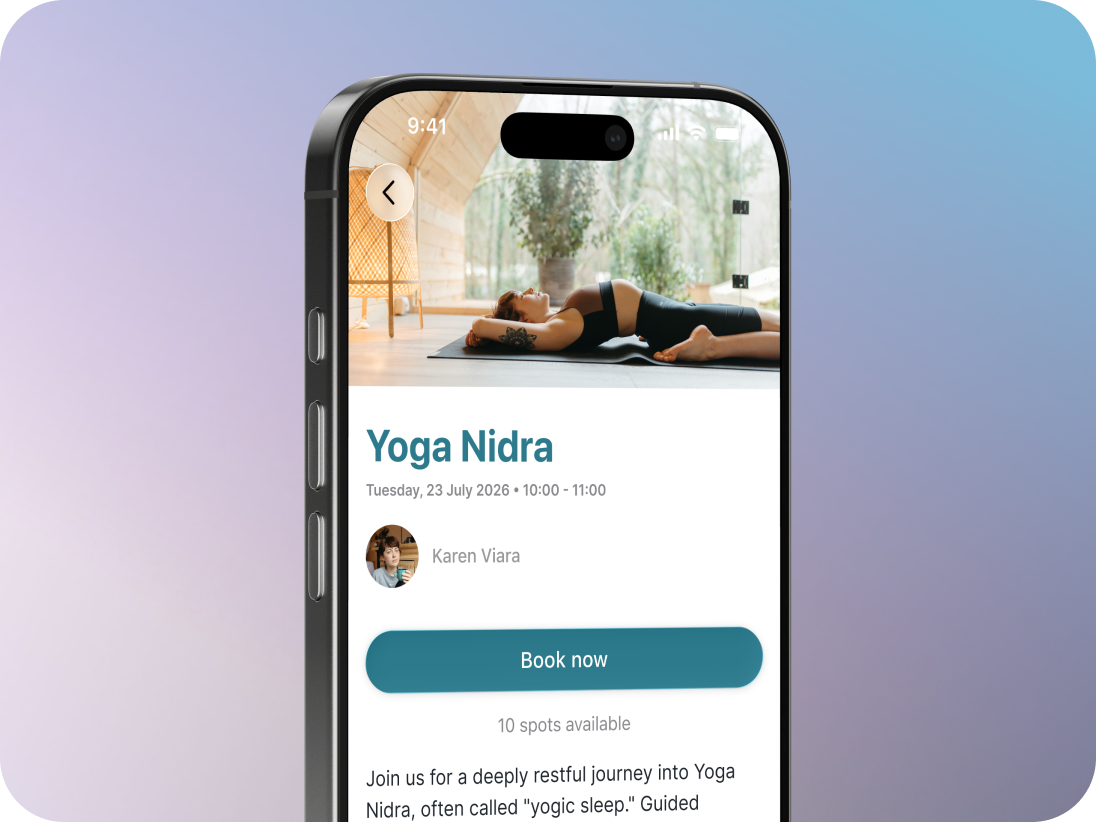
Booking a class is quick and easy.
- Select the class you'd like to attend
- Tap Book now
- If your studio allows guest bookings, you'll have the option to add guests before completing your booking
- If the class is part of a recurring series, you can also choose to book the class as part of a weekly class series
- Next, select the membership or class pass you'd like to use for your booking
- If you don't have a valid pricing option yet, tap Buy new. You'll be guided to your studio's available memberships and class passes, where you can complete your purchase before returning to your booking
- Once you've selected your pricing option, tap Book now to confirm your booking
You'll know your booking has been confirmed when you see a green Booked label beneath the class.
Booking a class series
A class series is a recurring class that takes place on the same day and time each week. Instead of booking each class individually, you can reserve your place for upcoming sessions in one go.
To book a class series:
- Select the class you'd like to attend
- Tap Book now
- Enable Book ahead weekly
- Select the membership or class pass you'd like to use
- Tap Continue
- Tap Book now
You'll automatically be booked into upcoming classes until your available credits have been used.
Bringing a guest
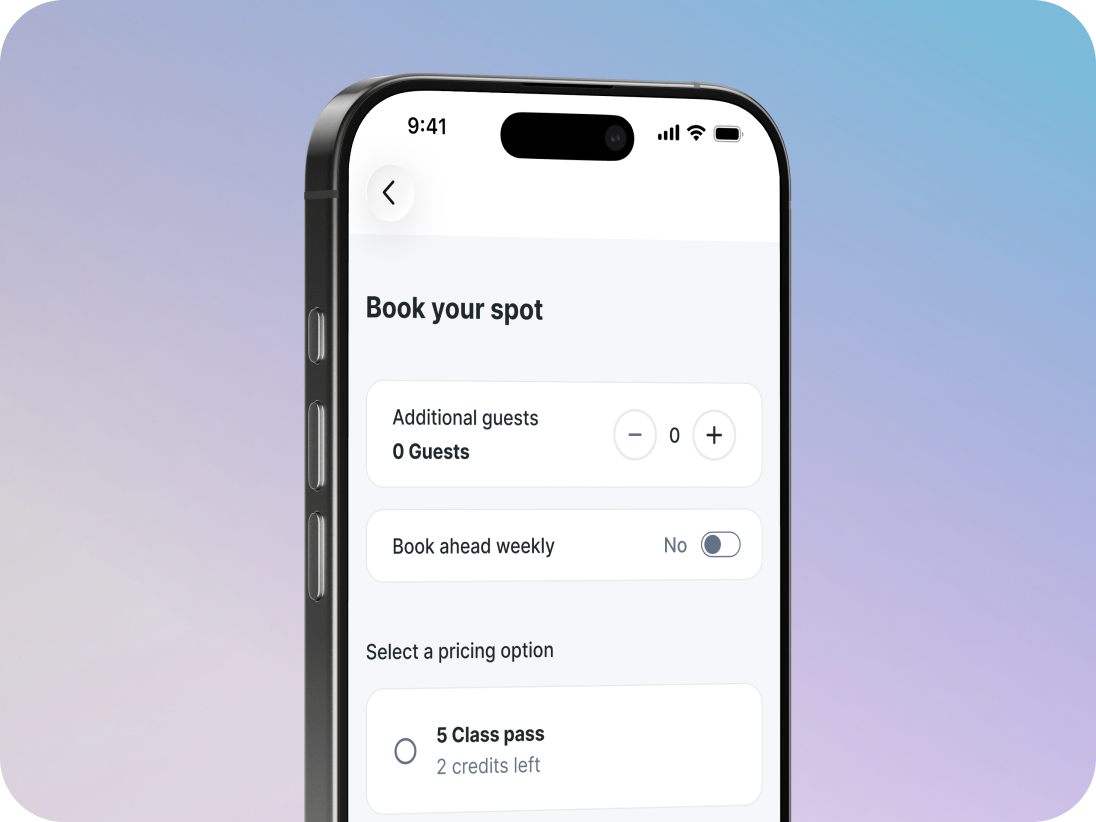
If your studio has enabled guest bookings, you can bring one or multiple family members or friends to class with you.
To add a guest:
- Select the class you'd like to attend
- Tap Book now
- Tap Add guests
- Select the number of guests you'd like to bring
- Choose the membership or class pass you'd like to use
- Tap Book now
An additional credit will automatically be deducted from your selected pricing option for each guest.
Purchasing a new pricing option
If you don't have a valid membership or class pass, you can purchase one directly from the app during the booking process.
- Select the class you'd like to attend
- Tap Book now
- Tap Buy new
- You'll be shown your studio's available pricing options.
- Select the membership or class pass you'd like to purchase and follow the checkout steps to complete your payment.
Once your purchase has been completed, you'll be able to continue with your booking.
Viewing your memberships and class passes
To view your memberships and class passes, simply click on Account in the top-right corner of the app.
Here you'll find an overview of your active memberships and class passes, including their start and end dates.
Using Dark Mode
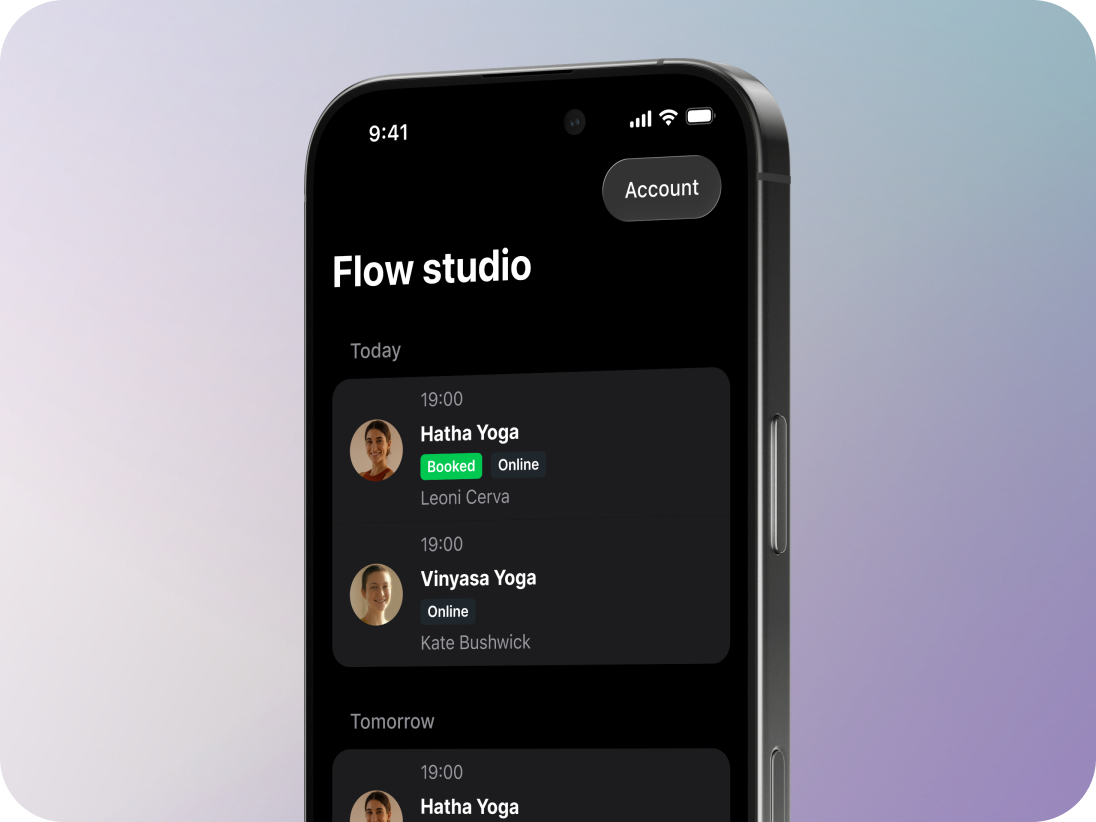
If you wish to switch from Light Mode to Dark Mode, the Momoyoga app automatically follows your device's appearance settings.
For iPhone
- Simply go to Settings
- Click on Display & Brightness
- Select Dark
For Android
- Simply go to Settings
- Click on Display
- Enable Dark theme
Once Dark Mode has been enabled on your device, the Momoyoga app will automatically switch to Dark Mode.
Adjusting your font size
The Momoyoga app also follows your device's font size settings.
For iPhone
- Go to Settings
- Click on Accessibility
- Go to Display & Text Size
- Select Larger Text.
For Android
- Go to Settings
- Click on Display
- Go to Display size and text.
Adjust the font size to your preference. The Momoyoga app will automatically display text using your selected font size.
That's it! You now know how to use the Momoyoga app to browse your studio's schedule, book classes, manage your memberships, and keep track of your upcoming bookings.
Need help?
If you have questions about using the Momoyoga app, feel free to reach out to your studio directly. If they run into any issues, they can always contact us at info@momoyoga.com.
Happy booking!
Was this article helpful?
That’s Great!
Thank you for your feedback
Sorry! We couldn't be helpful
Thank you for your feedback
Feedback sent
We appreciate your effort and will try to fix the article