Yogi guide
Welcome to Momoyoga! Your studio has chosen Momoyoga as their booking system, and we’re here to make your booking experience as smooth as possible.
With Momoyoga, you can:
- Quickly book your favorite classes anytime
- See all classes and open spots at a glance
- Cancel or reschedule in just a few clicks
This guide will walk you through everything you need to get started and help you make the most of your new Momoyoga account.
In this guide
- How to create an account
- How to log in to your account
- How to book your first class
- How to purchase a new pricing option
- How to sign yourself up for the waitlist
- How to view your class and order history
- How to connect my calendar with Momoyoga bookings
- How to cancel your class
- How to use the Momoyoga app
How to create an account
Create your Momoyoga student account in a few easy steps:
- Go to your studio’s page
- Click Register at the top right, or the Book button next to a class
- Fill out the short registration form with your email and details
- Click Register
Once logged in, you can book classes, manage your schedule, and enjoy a smoother yoga experience.
How to log in to your account
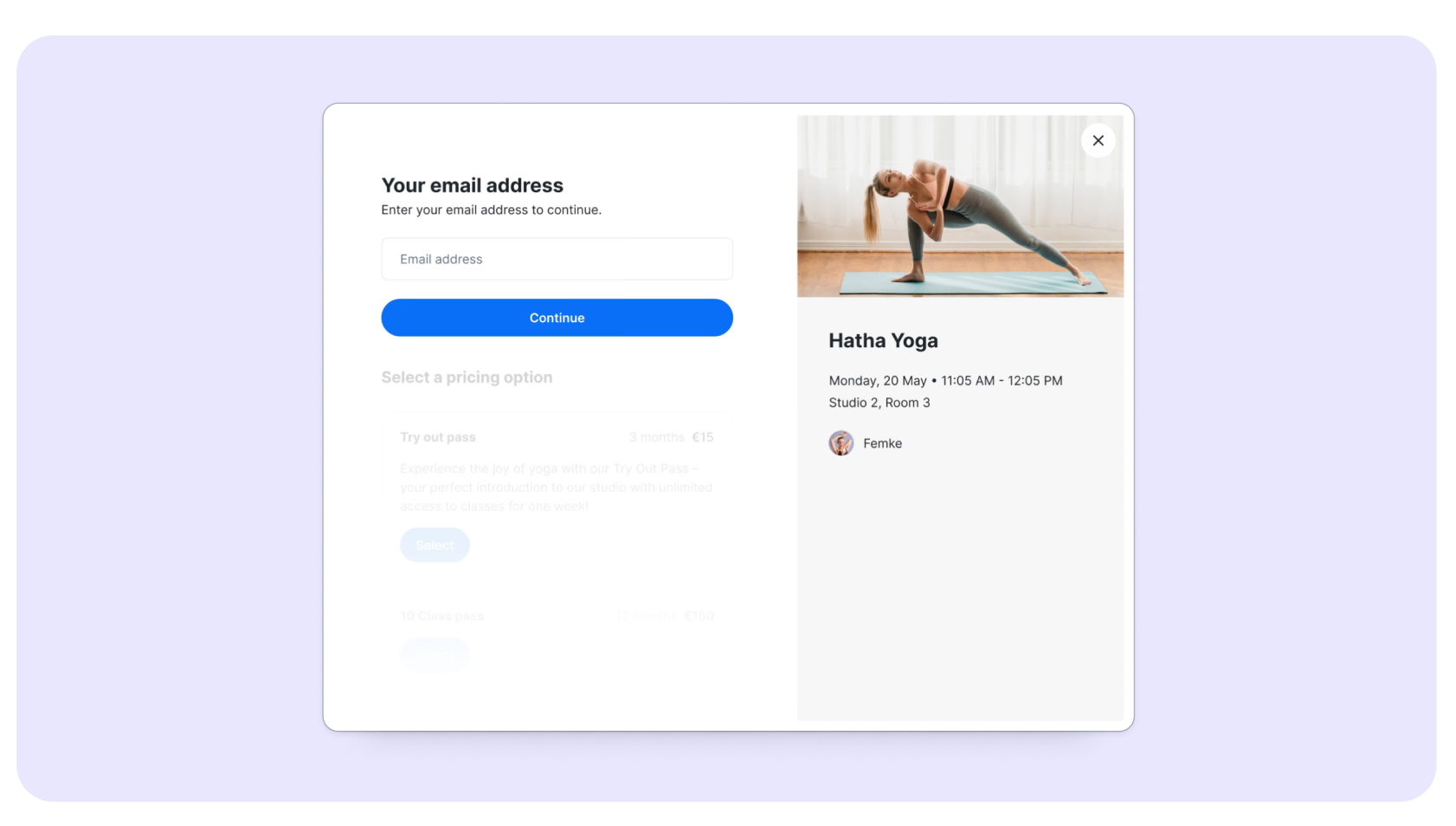
The next time you want to log in, you’ll be taken to the following login page:
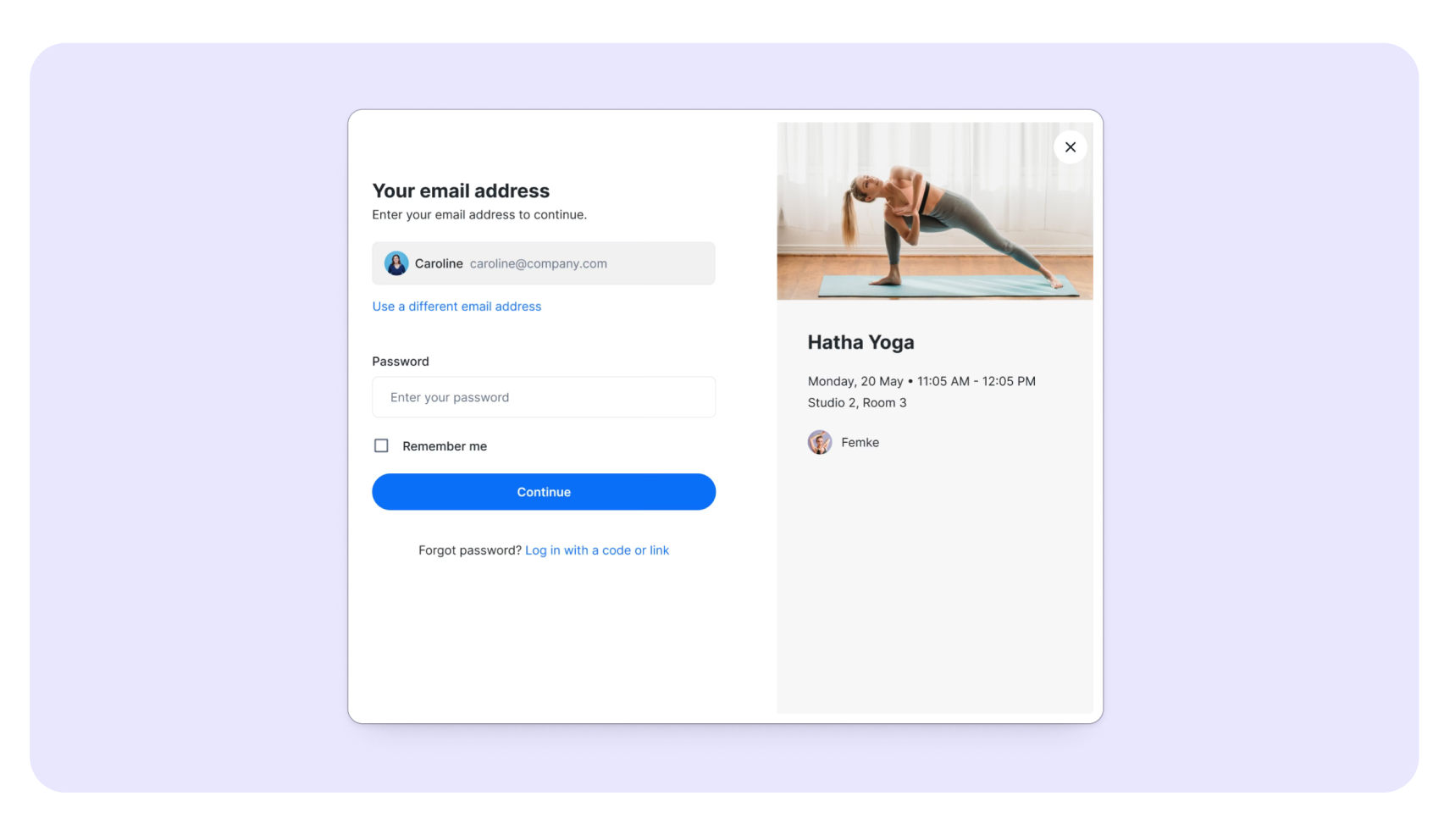
If your account is recognized, and if you have created a password, you’ll be asked to enter your password:
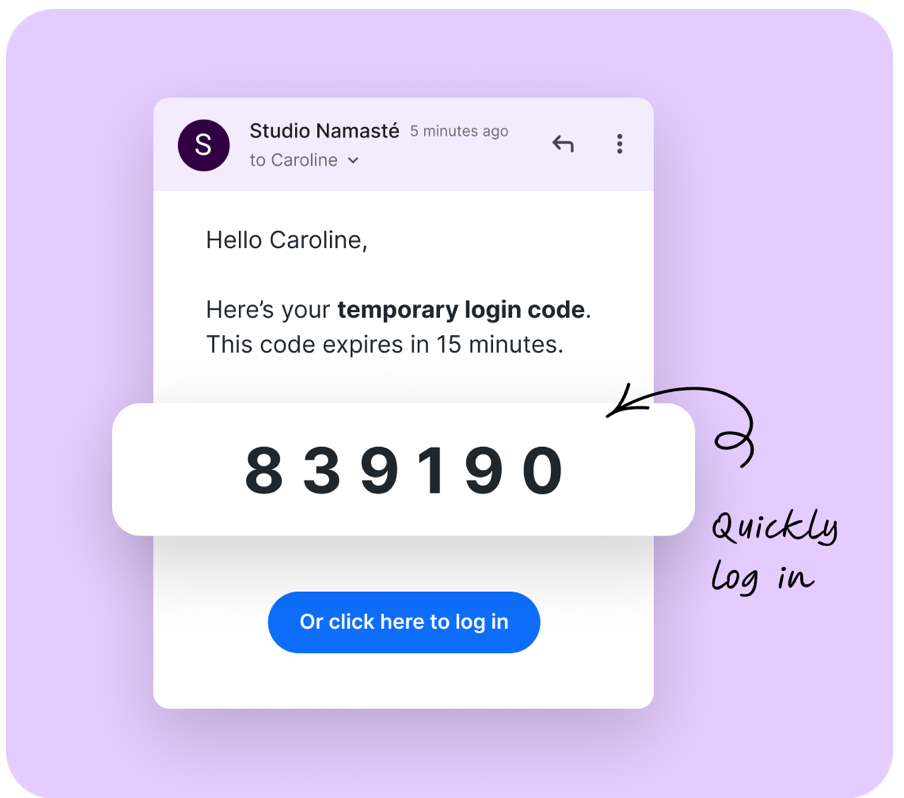
If you haven’t created a password yet, you can log in using a one-time login code.
Simply choose this option, and a login code will be sent to your email address. The code is valid for 15 minutes and lets you log in without needing a password.
In that same email, you’ll also find a link to create your own password, if you’d like to set one up for future logins.
How to book your first class
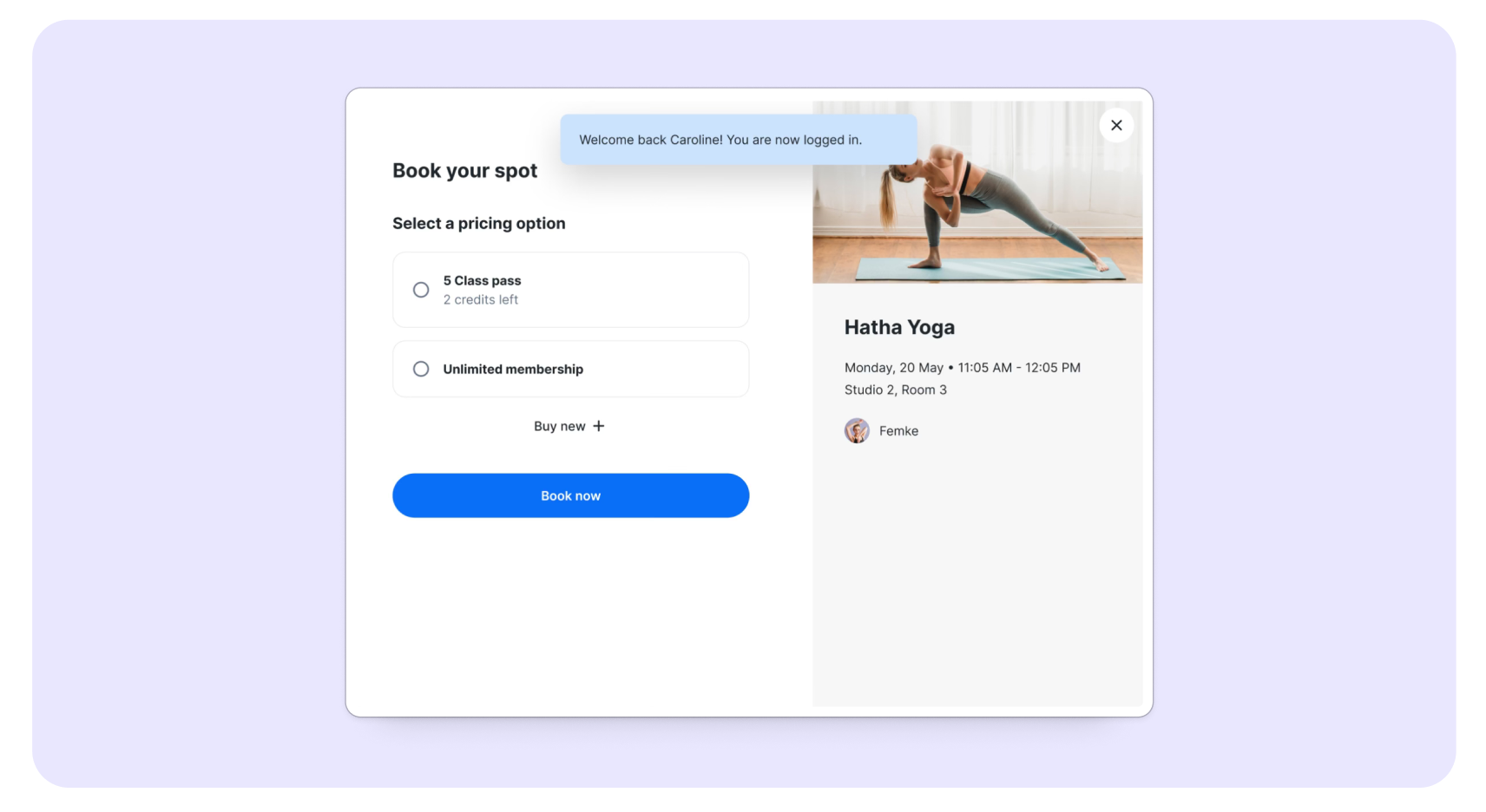
Once you’ve logged in, you’ll be able to book your spot in a class by following the below steps:
- Click Book now
- If you already have a membership or class pass, you can use it to book a class. If you haven’t purchased a pricing option yet, continue to the next chapter, “Purchasing a new pricing option,” where we’ll guide you through the process.
- Click Book now
You have been successfully booked into the class.
Bringing a guest
If your studio has the Guest feature enabled, you’ll have the option to add a guest when booking a class. You can bring a family member or friend along to join you in your session.
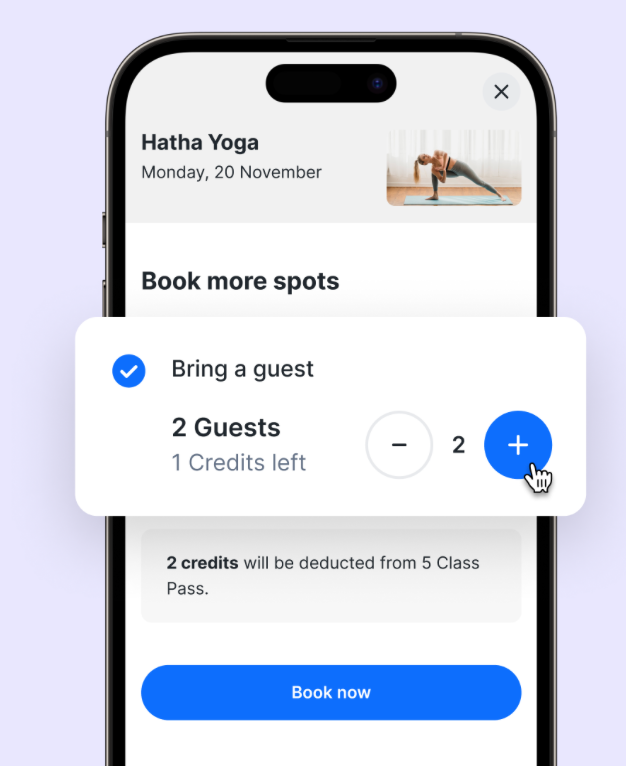
You can add a guest by following the below steps:
- Select the class you wish to attend
- At the top of the booking page, you’ll see the option to Add guests
- Select the number of guests you’d like to bring (this number depends on the limit set by the studio)
- Pick the class pass or membership you want to use for this booking (adding a guest will automatically deduct an extra credit from your class pass or membership)
- Click Book now
You and your guests are now registered for the class. They’ll appear in your schedule, and a confirmation email will be sent.
Note: For online classes, the class link is sent only to you. You are responsible for sharing it with the person you bring to the online class.
Note: Guests can only be added through the desktop or mobile version of Momoyoga, not within the Momoyoga app.
Signing up for class series
A class series is a set of recurring classes that you book in advance, happening on the same day and time each week. When you book a class series, you’re reserving your spot for multiple upcoming classes at once, instead of booking each class individually.
If you’d like to book yourself into a weekly class series, follow these steps:
- Go to the class you want to attend
- Click Book now
- Enable the toggle labeled Book ahead weekly
- Select the pricing option you want to use for your weekly booking (You’ll then be automatically booked into upcoming classes until your credits run out)
- Click Continue
- Click Book now
You’re now signed up for the class series.
How to purchase a new pricing option
If you haven’t purchased a membership or class pass yet, you’ll be asked to do so before booking a class. You cannot book a class without a valid membership or pass. To purchase a new pricing option you can follow the below steps:
- Go to the class you would like to attend and click Book now
- Click Buy new
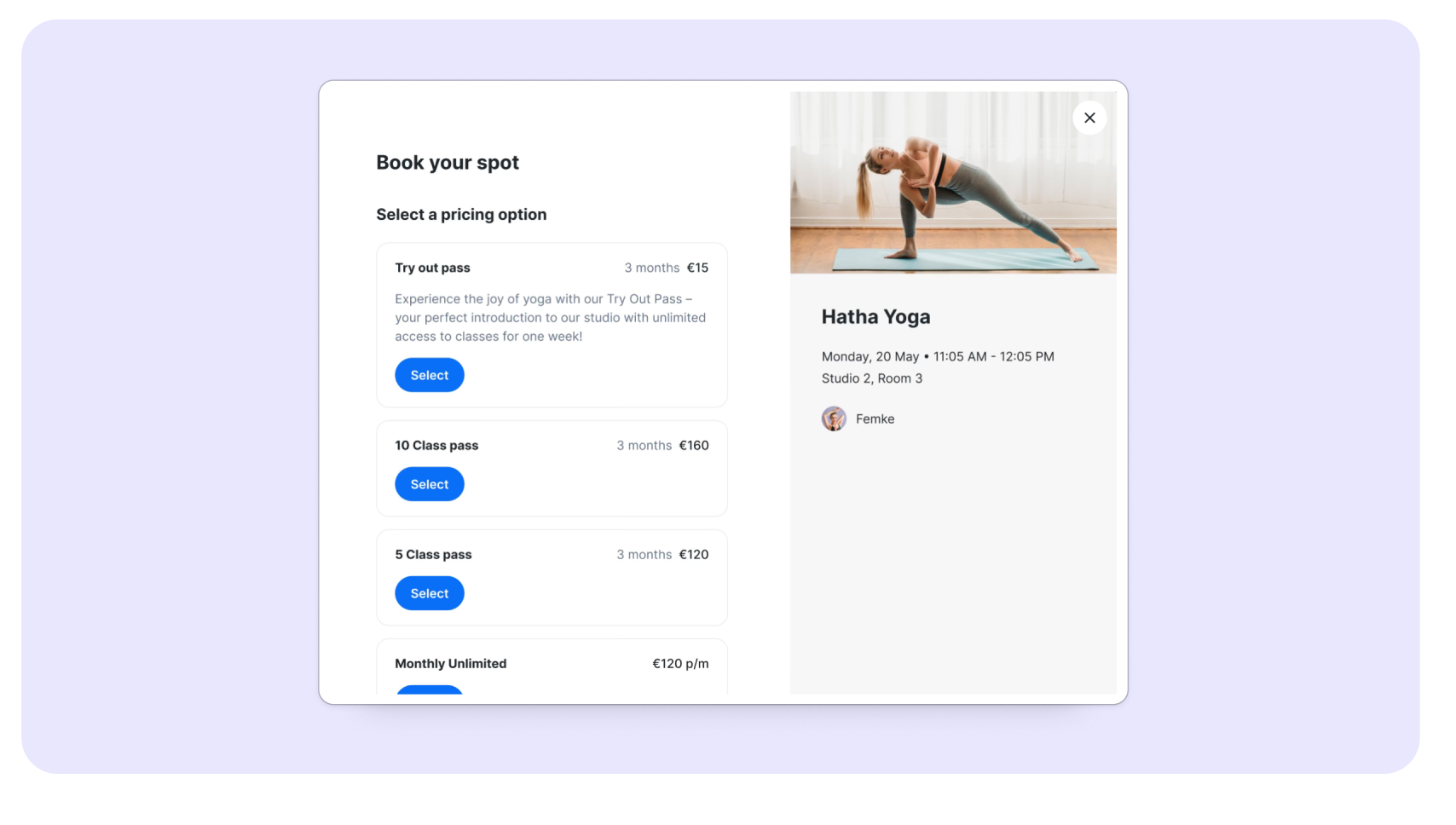
- Select the pricing option you would like to purchase
- Choose your payment option
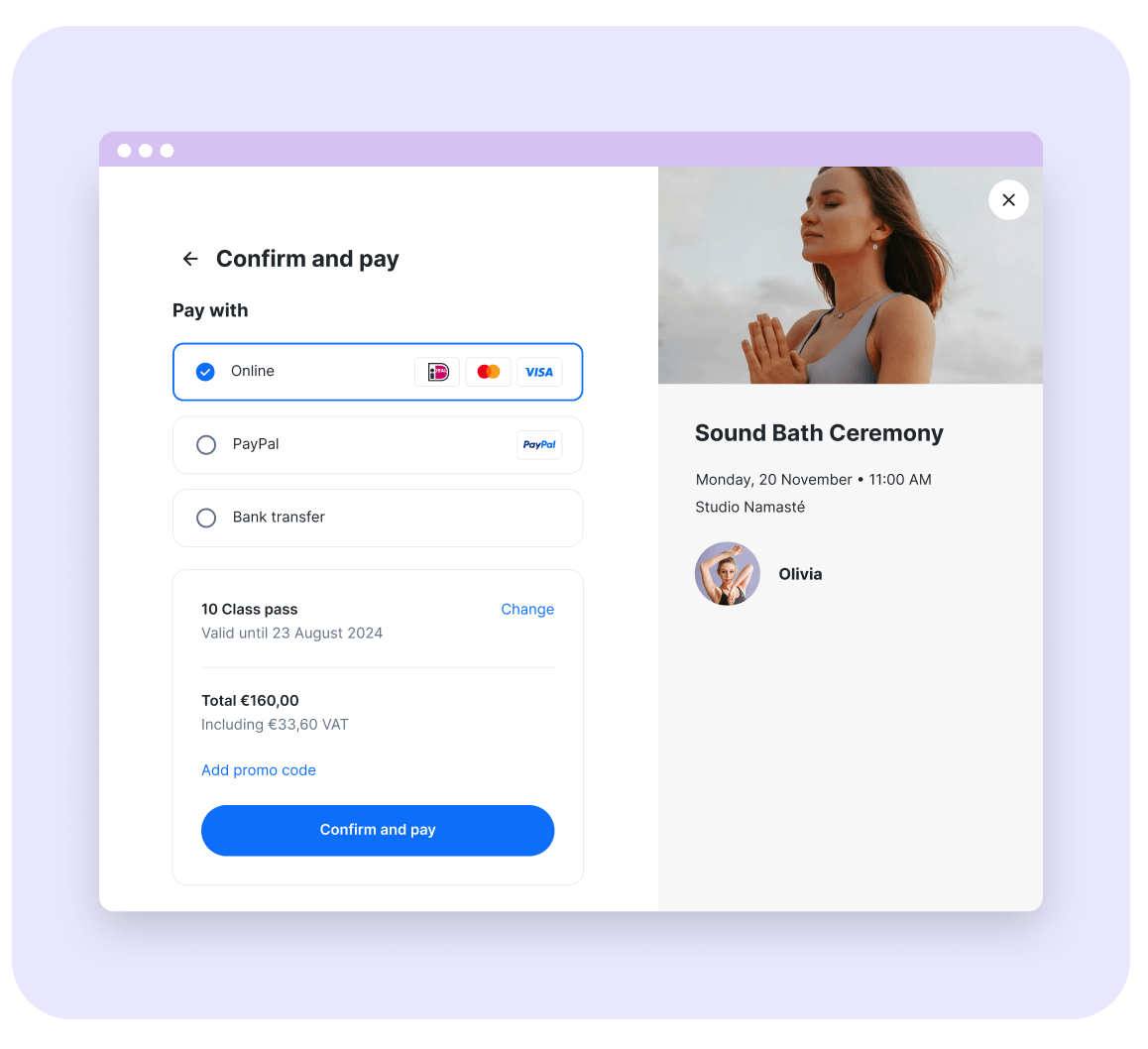
- If you have a promo code for this purchase, you can enter it in the “Add Promo Code” field above the total amount
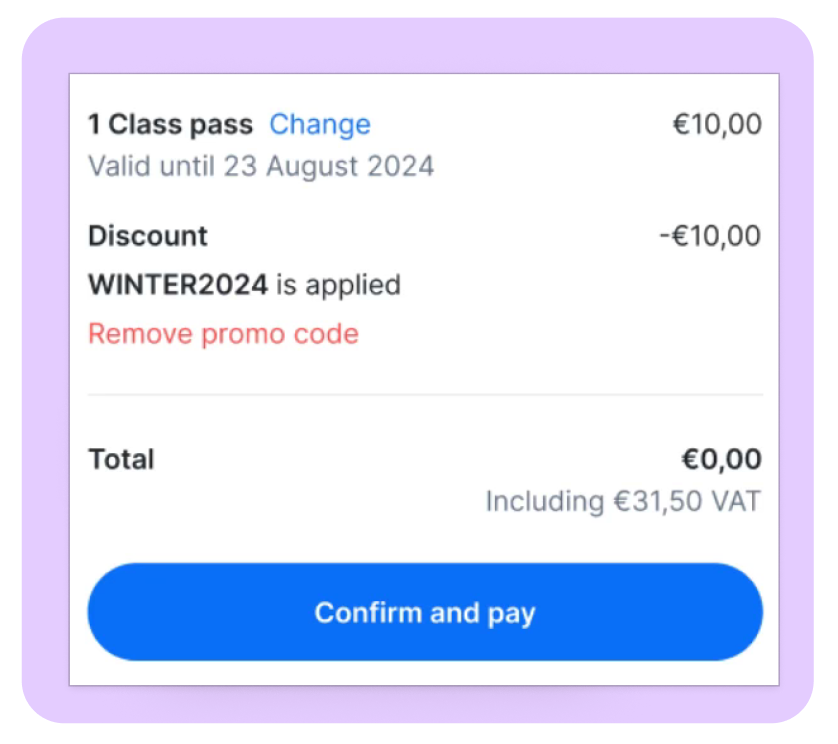
- Lastly click on Confirm and pay
On the final page, you’ll see a confirmation of your new membership or class pass. You’ll also receive a confirmation email for your purchase.
How to sign yourself up for the waitlist
If your studio offers the Waitlist feature and a class is full, you can add yourself to the waitlist. On the class page, you’ll see the banner below, just click Join waitlist to be added with a valid pricing option.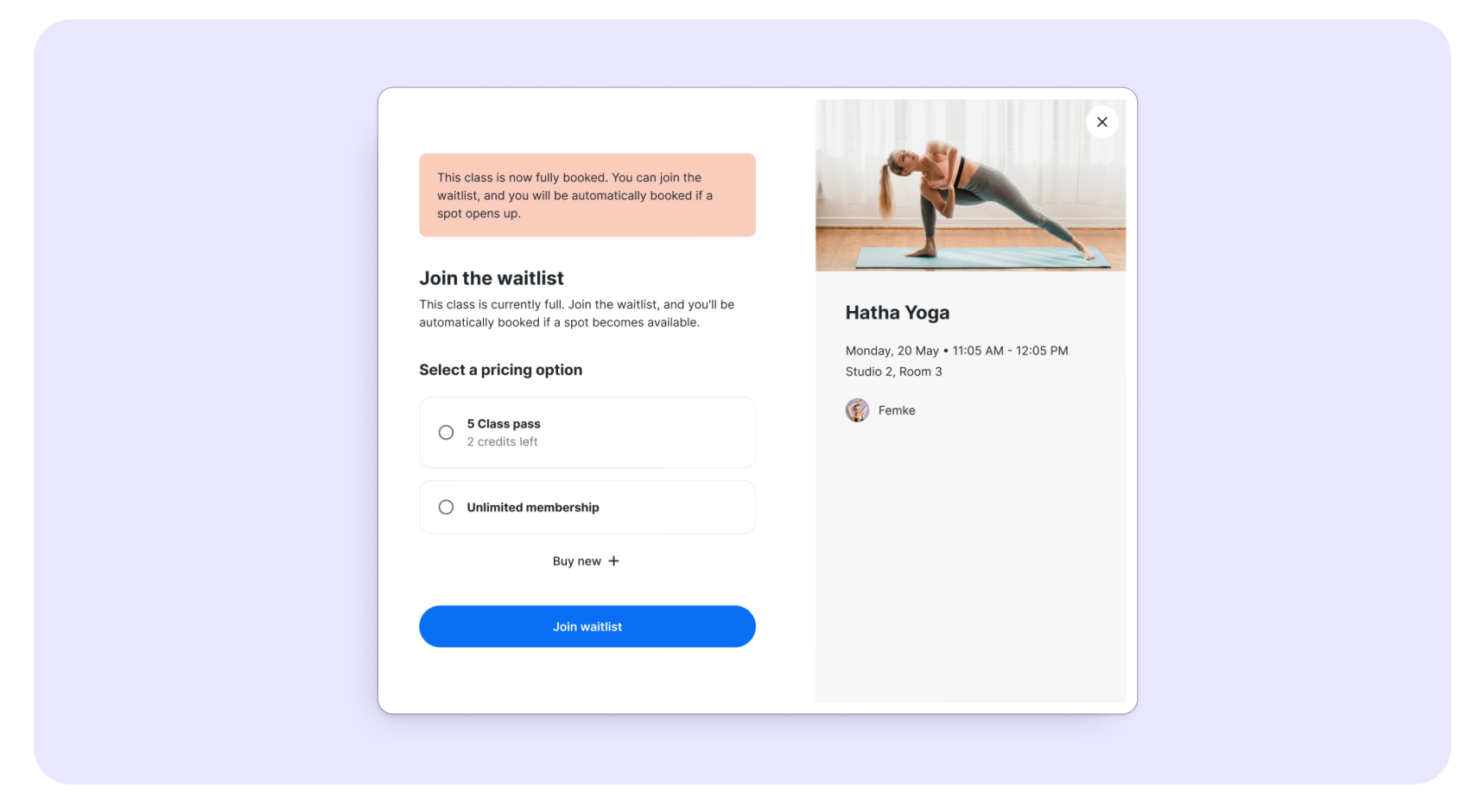
Once a spot becomes available, you will receive an email confirming that you have been added to the waitlist. If you are not added to the class, no credit will be deducted.
How to view your class and order history
You can view your invoices and credits in your Momoyoga profile. Simply click on your name at the top right corner and select My bookings and orders.
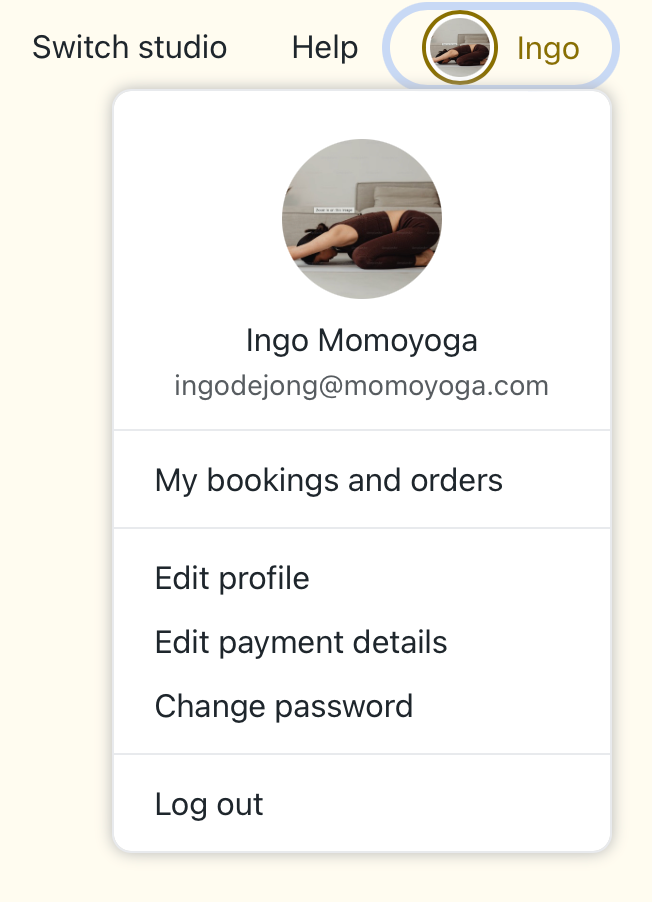
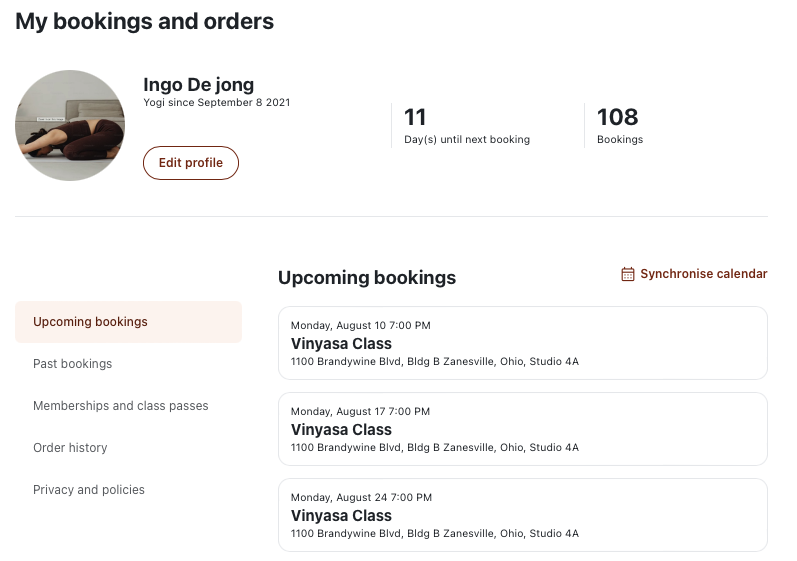
Within this page you will see an overview of your booked classes, remaining credits and your invoices. You can find the steps to download your invoices here.
How to connect my calendar with Momoyoga bookings
Yogis can now synchronize their personal calendar with their upcoming bookings directly from My Bookings & Orders section. This is a one-time setup that automatically keeps your calendar up to date whenever you book a new class or cancel an existing booking. Support for popular calendar apps, such as Google Calendar, Outlook, and Apple Calendar, is available through the following steps:
- Log in to your student account
- In the top-right corner, click Bookings & Orders
- Click Synchronise Calendar
- Select your preferred calendar (Google Calendar, Outlook, or Apple Calendar).
- Click Add to confirm and start syncing your bookings.
After the initial setup, your calendar will stay automatically updated whenever you book a new class or cancel an existing one.
Note: For future bookings and changes it might take some time to be reflected in your calendar. The changes will be refreshed at an interval that depends on the application and settings that you are using in your calendar app.
Note: You can remove this synchronization at any time directly from your calendar application.
How to cancel your class
If you’d like to cancel your booking for a class, you can follow the steps below:
- Go to the class you want to cancel
- Click Cancel Class (If you don’t see this option, it means either the class is already cancelled or you are not logged in to your account)

- The system will ask you to cancel just this class or this class and the following classes in case you have signed up for a class series
- Select the preferred option and choose Confirm cancellation
You have been removed from the class, and if it is within the studio’s cancellation period, your credit will be automatically returned to your pricing option.
How to use the Momoyoga app
With the Momoyoga app, you can easily view the online class schedule and book or cancel classes.
Note: You can only log in to the app if you have already created a student account. If you haven’t created one yet, we recommend doing so first.
Download the app by following the steps below:
iOS (iPhone, iPad, iPod Touch) Requires iOS 8.0 or higher (all devices except iPhone 4 and older)
- Download the app here: https://itunes.apple.com/app/momoyoga/id1233882505?mt=8
- Click Download
- Open the app by selecting the Momoyoga icon
For Android Requires Android 4.4 or higher
- Download the app here: https://play.google.com/store/apps/details?id=com.momostudio.momoyoga
- Click Install
- Open the app by selecting the Momoyoga icon
Note: Pricing options such as memberships or class passes can currently only be purchased via the website or mobile browser.
That’s it! You now know how to manage your classes and enjoy a smooth booking experience.
Was this article helpful?
That’s Great!
Thank you for your feedback
Sorry! We couldn't be helpful
Thank you for your feedback
Feedback sent
We appreciate your effort and will try to fix the article