Guest feature
Yogis can easily bring a guest to their classes! This feature lets your yogis invite friends and family, with payments automatically adjusted. It's a fantastic way to increase attendance and strengthen your community.
In this article
- How can I allow yogis to bring guests to the class?
- How can a yogi add a guest to their class?
- How can a yogi delete a guest from the class?
- How can teachers view booked spots and guests?
- How can I cancel a guest booking as an admin or teacher?
How can I allow yogis to bring guests to the class?
For an existing class:
- Go to the class you want to allow guest bookings for
- Select Edit
- Select Allow yogis to bring guests
- Optionally, you can limit the number of guests per booking and apply this setting to the entire class series
For a new class:
- Create a new class
- While creating the class, select allow yogis to bring guests
- Optionally, limit the number of guests per booking and apply this setting to the entire class series
How can a yogi add a guest to their class?
In order for the yogi to book a guest to the class, they can follow the below steps:
- The yogi can book the class they wish to attend
- On top of the page the yogi will see an option additional guests
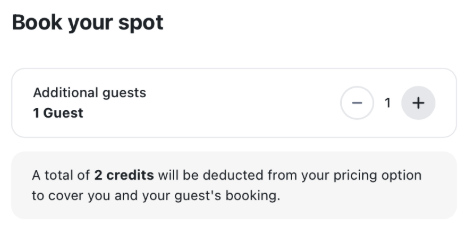
- After choosing the number of guests, the yogi can select the product they want to use to pay for this class
- Once the booking is complete, they’ll see the guest(s) added to their schedule overview and receive a confirmation email
Note: For online classes, the class link and information will be sent and are available only to the yogi who booked the class. It is the yogi's responsibility to share the link with their guest.
How does payment for guests work?
When a yogi adds a guest, the system will automatically deduct an extra credit from the yogi’s class pass or membership. If the yogi doesn't have enough credits, they can purchase additional credits by buying a new class pass or membership, allowing them to bring the guest.
How can a yogi delete a guest from the class?
Yogis can cancel their guest's booking by accessing their class details and selecting the "Cancel Class" option. The system will then prompt them to choose whether to cancel just the guest's booking or all bookings associated with the class.
Here are the steps for the yogi to delete the guest:
- Go to My Bookings and class details by clicking on their name on the right top of the screen
- Click on Cancel Class
- Choose how many guests' bookings you want to cancel, in case the yogi has added multiple guests
Note: A yogi cannot delete themselves from the class while keeping the guest. If a yogi has multiple guests, they can choose to cancel the booking for one, some, or all of the guests.
How can teachers view booked spots and guests?
As an admin or teacher, you can easily view the guests that have been added to a class by the yogi. To check this:
- Go to Classes
- Click on the class for more details.
- In the overview, you’ll see the yogi's name, and if they’ve brought a guest, the guests will appear with the label "Guest” next to the yogi’s name.
Additionally, you'll receive an email with details on the number of booked spots, including any guest bookings for the class
How can I cancel a guest booking as an admin or teacher?
As an admin or teacher, you can cancel a guest's booking at any time. Here’s how to do it:
- Navigate to Classes
- Click on the class
- In the class overview, you’ll see the yogi's name, and if they’ve brought a guest, the guests will appear next to the yogi’s name with the label "Guest"
- Next to the label, you’ll find an option to click on Cancel to remove the booking of the guest.

That’s it! Now you know how your yogis can bring a guest to your class :)
Was this article helpful?
That’s Great!
Thank you for your feedback
Sorry! We couldn't be helpful
Thank you for your feedback
Feedback sent
We appreciate your effort and will try to fix the article