Managing pricing options for your yogis
In this article
- How can I assign a pricing option to a yogi?
- How to change the payment status of a paid pricing option?
- How can I change the status of an unpaid class?
How can I assign a pricing option to a yogi?
Typically, yogis purchase their own products (such as class passes or memberships) directly from the class schedule page in Momoyoga. However, a teacher or studio can also assign a product manually when needed.
To assign a pricing option:
- Go to Yogis and search for the yogi
- Open their profile
- Click Add pricing option
- Select the product you want to assign
- Add a Start date
Since this product was not purchased directly by the yogi, it won’t trigger an automatic payment. To collect payment, you’ll need to send a payment reminder.
To send a payment reminder:
- Go to the yogi’s profile
- Click on the product you want to send the reminder for
- Select Send reminder
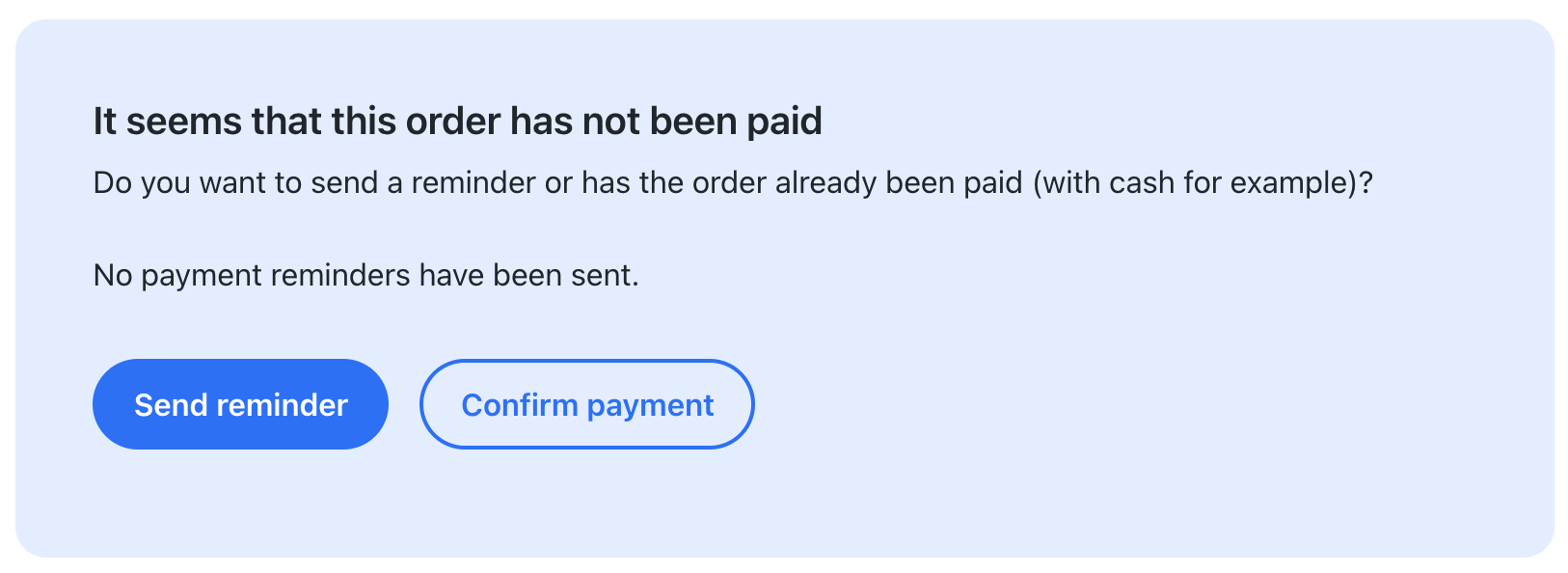
- You have the option to either send a payment reminder or an order confirmation. The order confirmation does not include a payment link, while the payment reminder will include a link for the yogi to complete the payment.
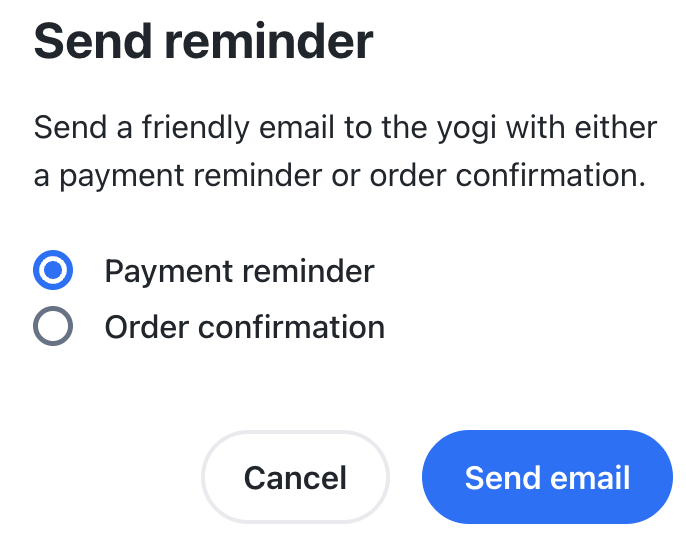
- Click Send email
The e-mail now has been sent to a yogi
How to change the payment status of a paid pricing option?
If the payment has been made in cash or has already been completed, you can confirm the payment for the yogi by following these steps:
- Go to Yogis and search for the yogi’s profile
- Click on the yogi’s profile
- Select the Order you want to edit
- On the order page, click Confirm Payment
- Choose the Date and Payment method
- Click Confirm
The payment has now been confirmed and will be shown as Paid in the Orders overview.
Note: If you want to generate an invoice for the yogi, read this article about how to generate invoices for yogis.
How can I change the status of an unpaid class?
You can add a yogi to a class even if they don’t have a valid membership or class pass. In this case, the yogi will be marked as not paid for the class.
If the yogi later obtains a valid membership or class pass, you can update their status to paid by following these steps:
- Open the class where the yogi is registered as not paid
- Remove the yogi from the class (this works for both past and upcoming classes)
- Verify that the yogi has a valid membership or class pass
- Re-add the yogi to the class with the paid pricing option
The yogi’s status within the class will now show as Paid.
Note: A yogi cannot register for a class without a valid membership; only admins can add yogis into a class without any pricing option.
That’s it! You’re now ready to manage your pricing options with ease
Was this article helpful?
That’s Great!
Thank you for your feedback
Sorry! We couldn't be helpful
Thank you for your feedback
Feedback sent
We appreciate your effort and will try to fix the article