Add and manage a teacher account
This article explains how to add and manage your teacher account in Momoyoga, as well as how to modify permissions for your teachers
In this article
- How can I add a teacher account?
- How can I edit a teacher account?
- How can I manage roles and permissions of a teacher
How can I add a teacher account?
With Momoyoga, you can add multiple teachers to your account. To add one or more teachers you follow the below steps:
- Go to Teachers
- Click Add teacher
- Complete the form by entering the teacher’s details, such as a short bio (e.g., their training background) and a link to their Instagram profile
- Choose the permissions and role you’d like to assign. Learn more about the available permission levels
- Click "Send teacher welcome email" if you’d like them to receive direct access
- Click Save
After clicking Save, the teacher has been added and will receive, if selected, the welcome email.
What details about the teacher will yogis be able to see?
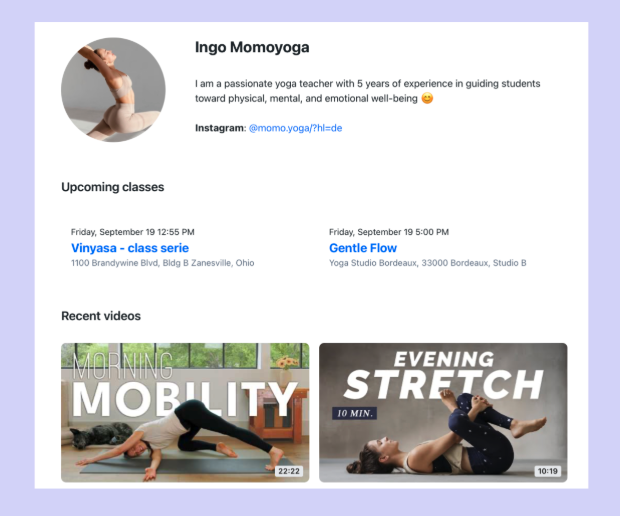
When yogis click on a class on your schedule, a Read more link appears below the teacher’s name. Selecting this link opens the teacher’s profile, where they can view upcoming classes, recent videos, and a short bio of the teacher.
How can I edit a teacher account?
You can manually change the account of a teacher. To edit a teacher's account:
- Go to Teachers
- Click on a teacher profile
- Click Edit
- Make the necessary changes
- Click Save
The teacher’s profile has now been changed!
Note: The email address can only be edited by the teacher themselves.
How can I manage roles and permissions of a teacher
With Momoyoga, you can customize teacher permissions based on each teacher’s role within your studio. Some teachers may need extended access for admin tasks, while new teachers only need to view their own classes. Learn more about roles and permissions of a teacher.
We hope this article helps you further in managing your teachers account! Gooduck!
Was this article helpful?
That’s Great!
Thank you for your feedback
Sorry! We couldn't be helpful
Thank you for your feedback
Feedback sent
We appreciate your effort and will try to fix the article