Custom payment integrations
In Momoyoga, we offer the possibility of integrating with three custom payment providers which you might also use outside of Momoyoga. We wish to allow you to use Momoyoga while employing your existing workflow and established payment methods.
In this article
- Available custom payment providers
- Additional fee for custom payment integrations
- How to activate a custom payment integration
- Alternative option: Online payments via Stripe Connect
Available custom payment providers
- PayPal
- Stripe (using your own Stripe account)
- Mollie
These integrations are available on selected Momoyoga paid plans.
Additional fee for custom payment integrations
These fees only apply to the integration with Mollie or your own Stripe account, however extra transaction fees may apply from the payment providers.
Offering you these custom payment integration requires us to keep up with updates and security on our end. To allow us to perform regular maintenance and allocate technical resources, an additional fee is applied if you use one of these custom payment integrations. This fee will be added to your monthly or annual invoice of your Momoyoga subscription.
Monthly plan
If you have chosen to be billed on a monthly basis for your Momoyoga subscription, an additional fee of 15€ will be applied to your monthly payments.
Annual plan
If you have chosen to be billed on an annual basis for your Momoyoga subscription, you receive a 25% discount on the total amount, which also applies to the additional fee. Therefore, an extra 11€ per month will be added to your invoice, which amounts to an additional fee of 132€ per yearly payment.
How to activate a custom payment integration
PayPal
- Go to your Settings
- Select Payments and payouts
- Select the option PayPal payments
- Select login with PayPal and follow the instructions shown on your screen
You can read more about PayPal here.
Note: Automatic direct debits are not supported by PayPal and therefore payments for recurring memberships must be paid through the automatic payment reminder email.
Stripe and Mollie
- Go to your Settings
- Select Payments and payouts
- Click on the link click here to activate it below the online payments
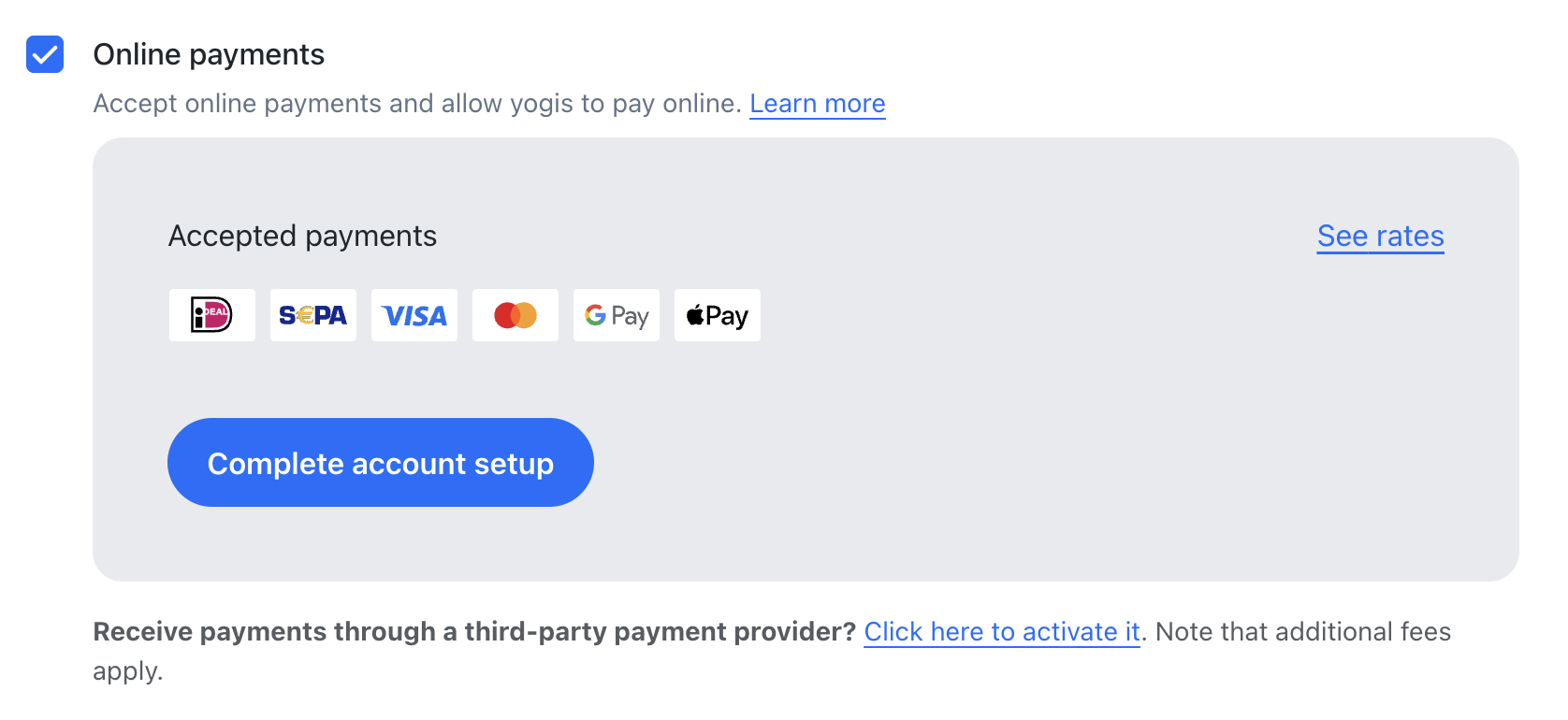
- Tick the box to allow for additional fees
- Select activate and follow the instructions shown on your screen
Alternative option: Online payments via Stripe Connect
Alternatively, you can choose to switch to our integrated payment option: Online Payments via Stripe Connect. By doing so, you can avoid being charged the additional fee.
Read everything you need to know about Momoyoga's Online Payment Feature (Stripe Connect).
Note: Yogis with active recurring memberships will have to re-enter their payment details before the next iteration when switching from one Custom payment provider to Stripe Connect and vice-versa.
If you are switching to our online payments feature from our integrated custom payment providers, the yogis payment details cannot be transferred for privacy and security reasons. Consequently, to prevent the next direct debit for a recurring membership from failing, the payment details of the yogis with active recurring memberships will need to be updated following the switch before the next iteration of their membership starts. This can be done either by the yogis themselves or by the studio administrator.
Take control of your payments with these simple steps and create a workflow that works for you!
Was this article helpful?
That’s Great!
Thank you for your feedback
Sorry! We couldn't be helpful
Thank you for your feedback
Feedback sent
We appreciate your effort and will try to fix the article