Getting Started: How to Add and Welcome Yogis in Momoyoga (New and Existing Students)
Namasté! We present to you: A Guide on How to Welcome Yogis to Your Studio. Why do you ask? You are probably new to us and may ask yourself: How will my yogis know I’m using Momoyoga, how will they be able to find me?
We’ll save you the time and trouble of having to figure this all out yourself, and give you some practical examples on how to communicate your start with Momoyoga with your yogis.
We know how valuable yogis are to you. Let’s take good care of them and create a warm welcome!
In this article
- Reach out to your yogis
- Assign pricing options to your yogis
- Personalize your welcome email
- Send the welcome email
Time to get to business
We’re so happy you’re getting started with Momoyoga. So far, you have created your own studio account with Momoyoga. After adding classes to your schedule, you’ve reached the next step: Adding your first yogi!
You can add yogis by entering their name, surname, and email address. After doing this, you can assign class passes and memberships to their profiles and add these yogis to classes. This makes for a smooth transition. Of course, your yogis will manage their accounts themselves afterward.
The official launch as a studio using Momoyoga, is sending out the welcome email to your yogis. When you’ve done that, the yogis can create a password, download the app, and access their account. From that moment on, they can purchase products (class passes and memberships) and book classes. Read more about sending the welcome email further in this guide.
Reach out to your yogis
Communicate, communicate, communicate!
You’ve probably heard this a thousand times: communication is key. Ease your yogis into the idea of transitioning your studios’ booking process from offline to online, and communicate that you will be using Momoyoga in the future. Read more on how to reach out to your yogis here.
Option 1: Add a yogi manually
To create a new yogi profile, follow these steps:
- Go to Yogis
- Click Add yogi
- Fill out all fields
- Select Send welcome email with password if you want to send the yogi their login details via email instantly
- Check This yogi gave me permission to be registered
- Click Show advanced options to assign a membership or class pass to the yogi
- Click Save
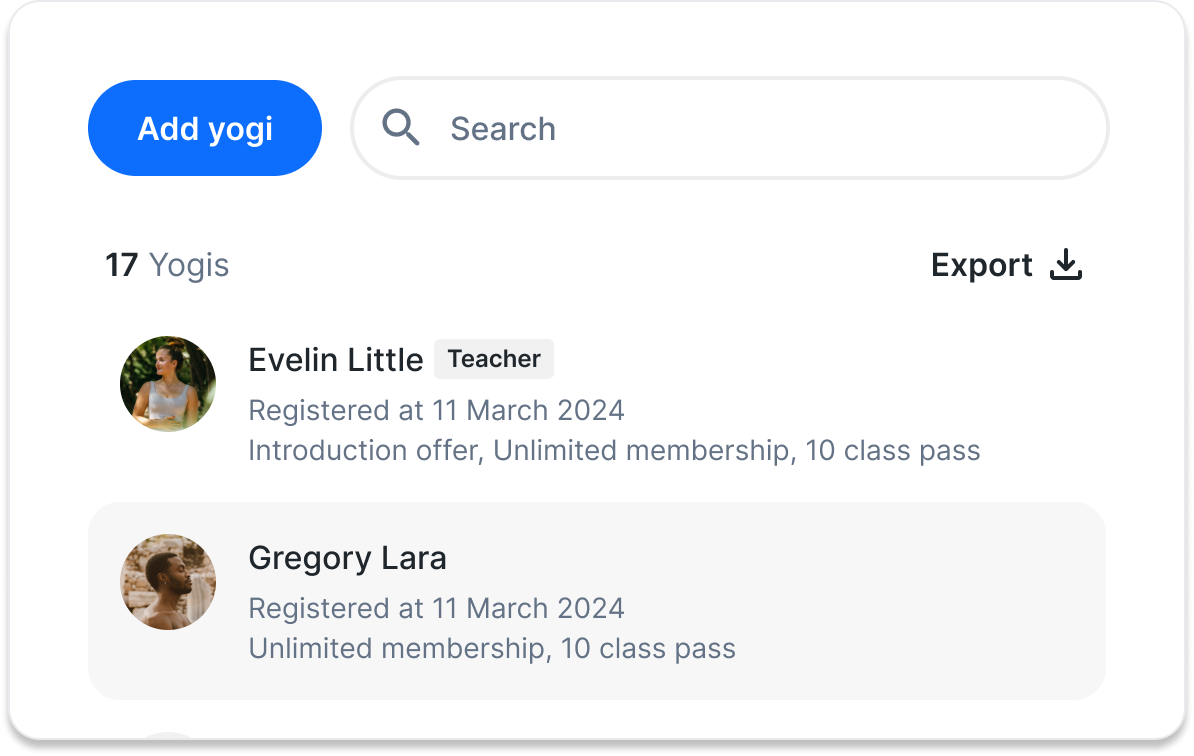
The yogi has now been registered and will, if selected, receive a welcome email with a setup link. Using the setup link, yogis can create a password and log in.
Option 2: Send us your yogi import file
Did you know we can help you import all your yogis at once? Let us import your yogis for you! And you know what? It’s a free service, how great is that?
You just need to take one simple step here: Just export your members from your current system. It doesn’t matter whether it’s an Excel sheet or some other management system. If you collected all the info, you can fill out this example Excel sheet and send it to import@momoyoga.com and we’ll make sure that your yogis will be added to your account in no time.
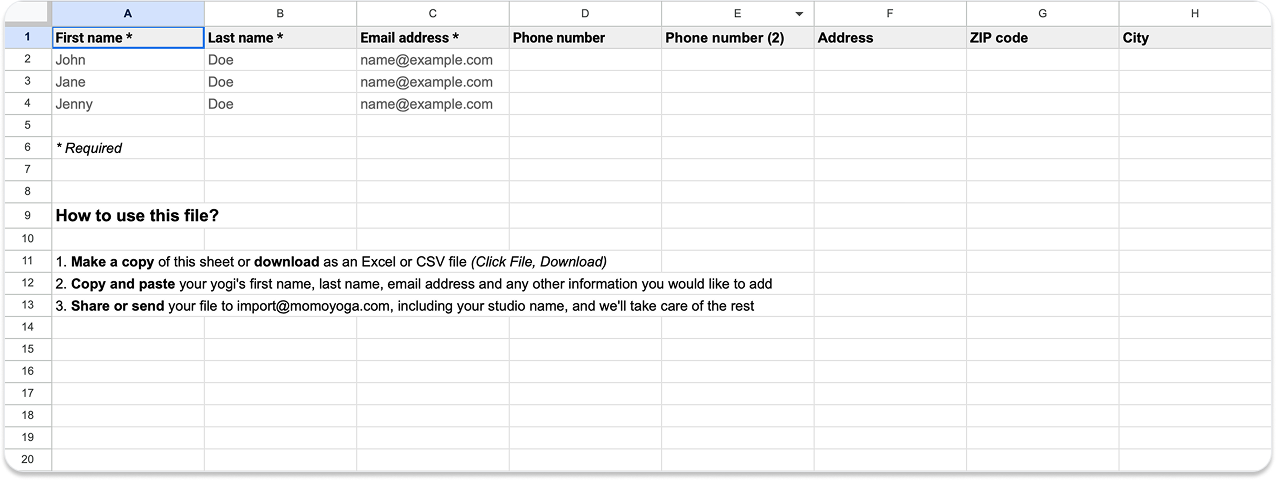
And don’t worry, it’s fully GDPR compliant. Read more about importing yogis here.
Option 3: Share your registration link
By sharing your personal registration link, yogis will be able to find your studio and sign up without you needing to take any action. You can turn the option for new yogis to register on or off when you’ve reached full capacity in your studio.
Share the link wherever you can: on your website, your social media channels, text messages, and even offline, for example on pamphlets or posters. Sharing your registration link is a great way to promote your studio and grow your yogi community.
Follow the steps below to find your studios’ personal registration link.
- Go to Settings
- Go to your Schedule
- Copy your registration link under Allow new registrations
- Share the link wherever you can
You would like to provide your yogis with step-by-step instructions for the registration with Momoyoga? Read here how to support your yogis with the onboarding process.
Assign pricing options to your yogis
If your yogis already bought class passes or memberships with you before you start using Momoyoga, then you might need to transfer these to Momoyoga as well. You can either assign the yogis their memberships while you are adding them to Momoyoga, or you can do so after they have already registered.
Note: We can not import the previous assigned pricing options into Momoyoga together with the import of your yogi list. This needs to be adjusted manually.
Option 1: During the registration process
If you are registering your existing yogis with Momoyoga, you can immediately add a pricing option to their profile. You can do so by following the steps above under “Add a yogi manually”. Before you save the newly created profile, you can select Show more options and scroll to the very bottom, where you will see the option to add a membership or class pass.
Note: When adding a pricing option during the registration process, you will receive the option to choose from the different pricing options which you have created in your Momoyoga's Pricing section. Therefore, it is important that you create the pricing options first before you add your yogis, to ensure that you can assign them the correct pricing options.
Option 2: After the registration is completed
If the yogis are registering at Momoyoga themselves through your shared link, or if we are importing your yogi list for you, it is possible to assign a pricing option to their profile once it is created. You can do so by following these steps:
- Select the yogi’s profile in your Yogis page
- Click on Add pricing option
- Select the correct pricing option and click on Add now
- Select the start date of the pricing option and click Add now
Adjusting the validity period and available credits
If some of your yogis have already used some of the available credits or time of the pricing option before you joined Momoyoga and you would like this to be reflected in the pricing options assigned to them, you can make the necessary adjustments to the pricing option assigned. You can do so by selecting the pricing option of your choice in the yogi's profile and clicking on Edit order. Here you can adjust the validity period of memberships and class passes, as well as the credits still available for class passes.
We prepared a tutorial to guide you through on how to add and edit pricing options on each yogi profile after the import is completed here.
Personalize your welcome email
The next step is to send out the welcome email. Before you send it out, we invite you to personalize the message that you’re going to send. You can do this by editing the welcome email. By doing so, you can share your excitement, create a warm welcome, and give the yogis all the information they need to get started step by step. Find more information about editing and sending welcome emails here.
We’d like to share some examples of the welcome emails. The first example is our standard template, which contains all the needed information for your yogis to start. Of course, it would be nice to change the tone of voice here, to suit you, and your studio better. You can also make it more personal, which we demonstrate in example two.
Note: These {text} are called variables, which means that the information will be automatically filled out. Please leave them as they are and they will work accordingly.
Note: Customizable e-mails are available with the selected Momoyoga paid plans.
Example 1: Use the standard template
Dear {member-firstname},
Welcome to {client-companyName}.
From now on, you can book your classes with us online.
Click here to get started: {setup-link}
{client-companyName}'s schedule can be found at: {schedule-link}
You can book classes, cancel classes (up to 1 hour in advance) or change your registration.
If you have any questions, please contact us.
Sincerely,
{client-fullName}
{client-companyName}
Example 2: Personalize your welcome email
Namasté {member-firstname},
Welcome to my studio. I’m so happy you’re here and that I have the opportunity to share this space with you! :) I’m excited to step on the mat together and have a magical practice. It is my wish that you will always feel welcome here and that my classes will help you ground, tune in, and feel balanced.
From now on, you can book your classes online, using Momoyoga.
Please, click here to get started and set up your password: {setup link}
You can find my class schedule at {schedule-link}
The easiest way to book your classes is through our app, called ‘Momoyoga'. You can find this in the App Store or Google Play Store on your phone.
You can log in to the app with your email and password (which you can choose via the link). You can easily see the timetable and book your class with the click of a button! Using the app, you can also cancel lessons (up to X hours in advance).
If you are not completely sure, we will gladly help you in the studio. If you have any questions, don't hesitate to contact us! You can call us on XX or email us at XX
Wishing you all good things,
{client-fullName}
{client-companyName}
Send the welcome email
Having personalized your welcome email, you have two options to send the welcome email. The first option is to send the welcome email to each yogi individually. Read here how it’s done or watch or tutorial on how to adjust and send out welcome emails to your yogis.
But there’s a second option here. An easier one! Did you know that we take this out of your hands completely? We just… do it for you!
What does it take? Just send us a message at info@momoyoga.com, mentioning when you’d like us to send out the welcome email to all the yogis at once. Easy does it!
Congrats, you’re done! What happens when you send out the welcome email?
From this moment on, yogis can create an account via the setup link in the welcome email, log in, purchase products (class passes and memberships), and book classes. This is the time for you to reap the benefits of having put in the work, and use Momoyoga to its full potential.
Was this article helpful?
That’s Great!
Thank you for your feedback
Sorry! We couldn't be helpful
Thank you for your feedback
Feedback sent
We appreciate your effort and will try to fix the article